Setting up your account after buying
There is no sign-up form to fill in. The purchase creates the account, and a letter arrives with a link that sets your password — that link is the whole setup.
The account is created on the email you paid with, and the letter goes to that address. If you paid with one address and read another, the letter is sitting in the first one.
If the letter is not there
Check spam and the promotions tab first — the letter is automated, and filters treat it as such. Searching your mail for “Nursing Plan” finds it faster than scrolling.
A reminder may arrive later
If the link goes unused, a second letter follows — “Your account is still waiting”. It carries the same button and does the same thing, so either letter will do.
The link is single-use
Once it has set a password it is spent, and opening it again will not work. That is not a problem: from then on you sign in normally, and “Forgot password?” issues a fresh link whenever you need one.
From the letter to your first lesson
1 / 4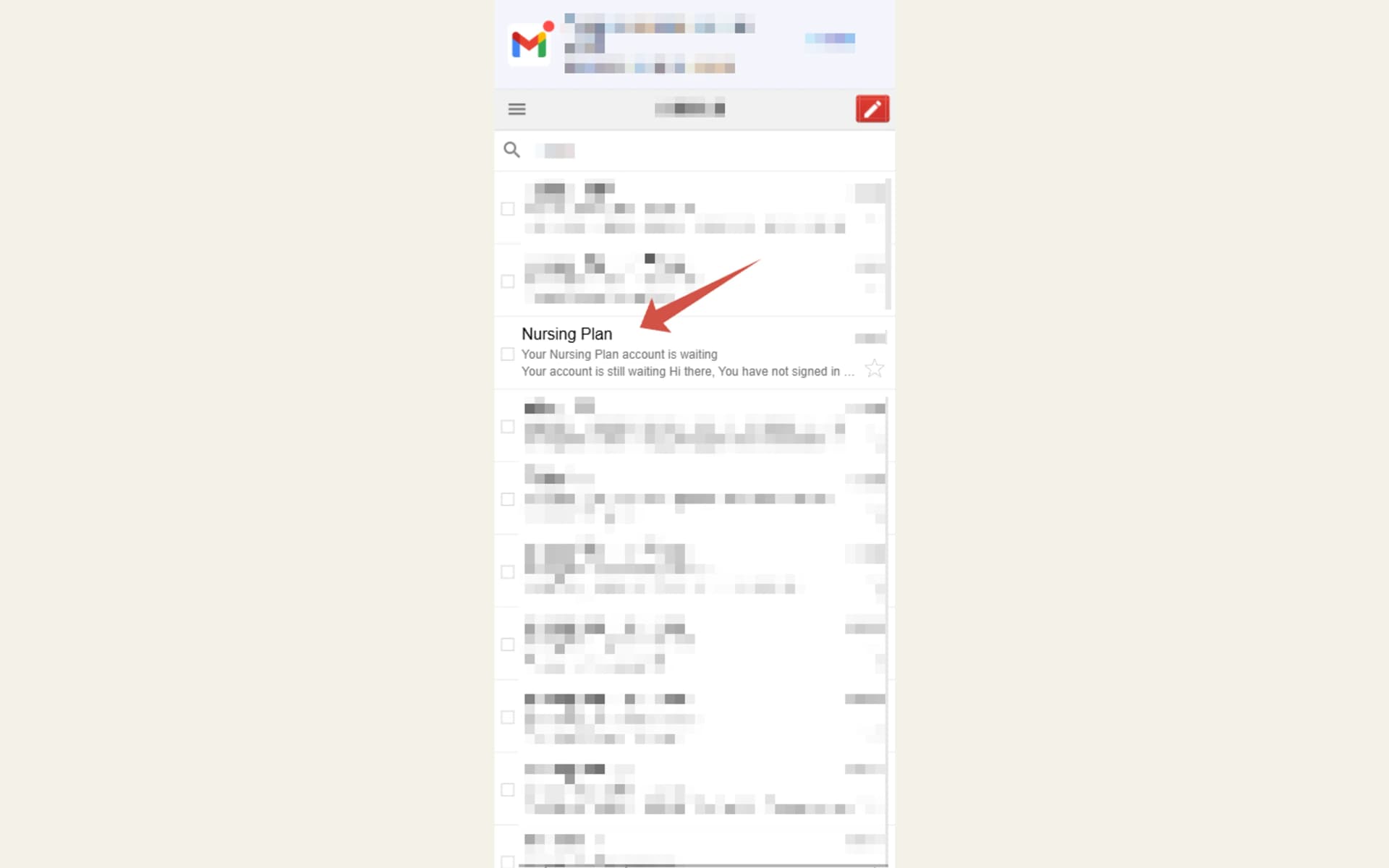
Find the letter from Nursing Plan in your inbox.
Open it and press “Set your password”.
Choose a password. That is the account set up.
You land in the app. Start with semester one, first lesson.
Set the exam date early — the dashboard counts down to it and the plan orders topics backwards from it.
Still stuck?
Write to us with what you were doing and what happened. One working day, answered by a person.